
Android · Open testing
 Clipfit
Crop, Trim, Cut Video.
Clipfit crops, trims and fixes your videos in a few taps. Pick a tool, choose a video, save. No watermark, nothing uploaded, works offline.
Why clipfit
• Simple from the first tap: every tool says what it does, and a task takes a few steps • Quick: plain crops and trims are saved without re-encoding • Sharp results: your video keeps its resolution and detail, with no watermark
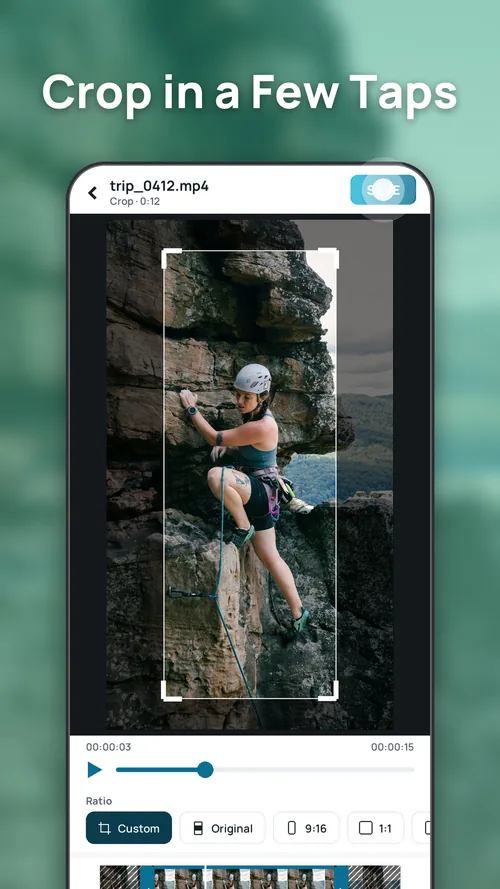
Crop to any ratio
9:16, 1:1, 4:5, 3:4, 4:3, 5:3, 16:9, 21:9, 2:3, the original shape, or a free box you drag yourself. Type an exact ratio like 2.35:1, use the rule-of-thirds grid to frame your shot, and pick the size for TikTok, Reels, Shorts, YouTube, an Instagram post, Facebook or X in one tap. A plain crop is saved without re-encoding, so it's fast and keeps full quality. Play the clip right in the editor, centre the box on a face in one tap, and keep your own ratios one tap away. • Remove black bars: finds letterbox bars and crops them away • Straighten: level a tilted video up to 15° either way • Exact size: type X, Y, width and height in pixels
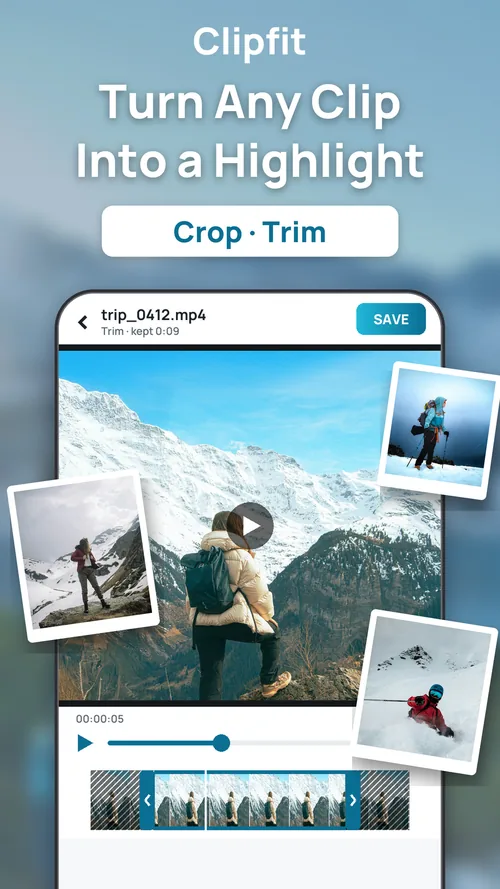
Trim, cut out the middle, or keep several parts
Keep just the best part, remove a boring stretch from the middle, or pick up to 10 parts and join them into one clip. Drag the ends of the filmstrip, or zoom the timeline for frame-exact cuts. Tighten ends trims black or silent seconds from the start and end in one tap. Save any frame as a photo, remove the sound, or save the part as a GIF.
Reduce size
Small, medium or high quality, or type the size you need in MB. One-tap targets for WhatsApp, Discord and email tell you when a clip is too long to fit. Custom lets you pick resolution, frame rate and quality, and remove the sound to save space. See the estimated size before you save, or tap Check real size to test a few short samples first.
Extract audio
Save the sound of the whole video or just a part as M4A (128, 192 or 256 kbps) or lossless WAV, in stereo or mono. Add a fade in and fade out, and even out the volume so quiet clips are easy to hear.
Enhance & filters
Auto enhance balances exposure and colour from several frames of your clip. Fine-tune brightness, contrast and saturation, sharpen, reduce noise, or pick one of eight looks.
Fit to frame
Put the whole video into 9:16, 1:1, 4:5, 16:9 or 4:3 with a blurred, black, white or colour background, so nothing gets cut off.
Rotate & flip
Fix sideways videos instantly with no quality loss, or mirror them.
Change voice
Make the voice deeper, higher, giant or cartoon-like. The length and the picture stay exactly the same.
Keep editing
Just made a clip? The Home screen offers the next tools for it, so you can crop, then trim, then shrink without picking the file again.
Your save settings
Choose resolution, frame rate, codec and bitrate when you export. Keep original date puts the copy next to the source in your gallery. Your original video is never changed: every result is a new file in your gallery.
Built for your phone
Everything runs on your phone, so your videos never leave it. Heavy work adapts to your phone: weaker or warm phones get lighter settings so exports stay smooth.
Free and Premium
Every tool is free, with a few exports a day. Premium gives unlimited exports, 2K/4K and 60 fps export, HD GIFs, and strong sharpen and denoise. Pick monthly, yearly (with a free trial) or pay once for lifetime. Cancel anytime in Google Play.
Questions people ask
Are my videos uploaded anywhere?
No. Everything is processed on your phone. The apps work in flight mode.
Is there a watermark?
No. Nothing is ever stamped on your exports, free or Premium.
I changed phones. How do I get Premium back?
Open Settings → Restore purchases while signed in to the same Google account.
Clipfit: Crop, Trim, Cut Video
Feedback and support: hieu.trantrung1204@gmail.com